
USD


Slide Text Animation Template for DaVinci Resolve | TextFlow 12 – Directional Slide
USD
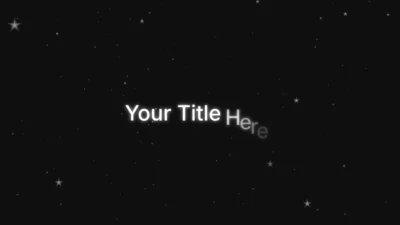
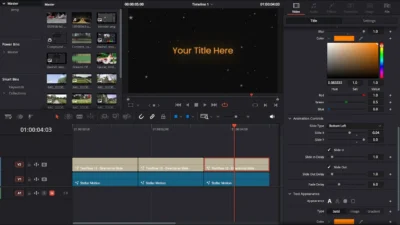
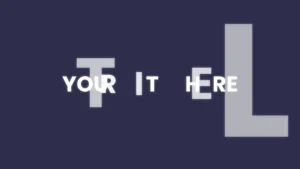
TextFlow 12 – Directional Slide is a clean and modern text animation template for DaVinci Resolve. It lets your titles slide smoothly from any direction with fade, glow, and shadow effects. Fully customizable, lightweight, and perfect for intros, tutorials, and cinematic videos.
$3.88
Add stylish sliding text animation in DaVinci Resolve
TextFlow 12 – Directional Slide is a versatile title template that brings fluid motion to your text. With fully customizable controls you can slide text in any direction and fine-tune timing, fades, glow and shadows for a polished, cinematic look.
This clean, modern title pack makes your text slide smoothly from any edge or corner and includes fade, glow and shadow options. Ideal for professional intros, tutorials, cinematic videos, presentations, and more.
Features of this template
- Directional Slide Animation: Slide your text in or out from any direction – top, bottom, left, right, or diagonal. Control the exact movement using the Slide X and Slide Y sliders for complete flexibility.
- Built-in Glow & Shadow Effects: Enhance your titles with professional glow and shadow styling. Customize glow size, gain, shadow color, distance, angle, blur, and strength. Both effects include easy on/off checkboxes.
- Slide In/Out Controls: Choose whether your title slides in, slides out, or both using the Slide In and Slide Out toggles. Adjust timing precisely with Slide In Delay and Slide Out Delay controls.
- Smooth Fade Control: Refine your title’s visibility with the Fade Delay option to create smooth, natural fade-in and fade-out transitions.
- Text Appearance Options: Switch between Solid, Gradient, or Image Fill styles to match your project’s look.
- Additional Fine-Tune Controls: Includes several extra parameters to perfect your animation and visual balance.
- Lightweight Version Included: A simplified version is also available for creators using low-spec systems or preferring a minimal setup.
Compatibility
- Software: Fully compatible with DaVinci Resolve (both Free and Studio versions). Recommended for version 18.0 or later for best performance.
- Operating Systems: Works seamlessly on Windows, macOS, and Linux.
What’s Included
Inside the ZIP package, you’ll find:
- Font Files Folder: Contains the free Poppins font (a Google Font) used in this template.
- Templates Folder: Includes two folders with two versions of the template:
- TextFlow12Full: The full-featured version with all customization options.
- TextFlow12Lightweight: A simplified version optimized for smoother performance on low-spec systems.
- README.txt: A complete guide covering installation and usage instructions.
How to Install
- After downloading, unzip the package to access its contents.
- Open the Font Files folder and unzip the Poppins.zip file, then install the font by double-clicking all .ttf files. (The font used is Poppins, a free Google Font also available directly from Google Fonts.)
- Inside the Templates folder, you’ll find two folders with two versions of the template:
- TextFlow12Full: the full-featured version with advanced customization options.
- TextFlow12Lightweight: a simplified version optimized for lower-end systems.
- Open your preferred folder and double-click TextFlow12DirectionalSlide.drfx to install the template.
- If prompted, choose Install (or Overwrite to update an existing version).
- You can try both versions, installing one will replace the other, so keep whichever fits your workflow best.
- Once installed, restart DaVinci Resolve.
- In the Edit Page, open Effects Library > Toolbox > Titles > DvBlend. Or use the Search Bar to quickly find it by name.
How to Use
- In the Edit Page of DaVinci Resolve, drag and drop TextFlow 12 – Directional Slide onto your timeline.
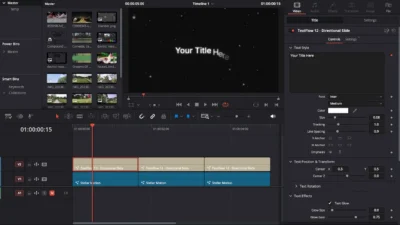
- Select the title clip and open the Inspector -> Title tab to access all customizable controls.
- Enter your text in the Main Text field.
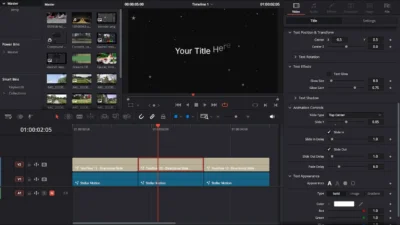
- Under Animation Controls, choose the direction and behavior of your slide animation.
- Adjust Delay to fine-tune the timing of the intro and outro transitions.
- Modify Font, Size, Tracking, and Line Spacing to achieve the perfect visual balance.
- Experiment with Glow, Blur, and Shadow options to create either cinematic or minimal motion styles.
- When satisfied, play the timeline to preview your animation in real time.
Try these sample Slide X/Y settings to achieve various entry directions:
| Direction | Slide X | Slide Y | Description |
|---|---|---|---|
| Left to Center | -0.02 | 0.00 | Slides from the left side. |
| Bottom Left to Center | -0.02 | -0.02 | Slides diagonally from the bottom left. |
| Bottom Center to Center | 0.00 | -0.02 | Slides upward from the bottom. |
| Bottom Right to Center | 0.02 | -0.02 | Slides diagonally from the bottom right. |
| Right to Center | 0.02 | 0.00 | Slides from the right side. |
| Top Left to Center | -0.02 | 0.02 | Slides diagonally from the top left. |
| Top Center to Center | 0.00 | 0.02 | Slides downward from the top. |
| Top Right to Center | 0.02 | 0.02 | Slides diagonally from the top right. |
Tip: Increase/decrease the Slide X/Y values to increase/decrease the slide strength.
Last Update
Date: 26 December, 2025
Reviews
There are no reviews yet.