
$ USD

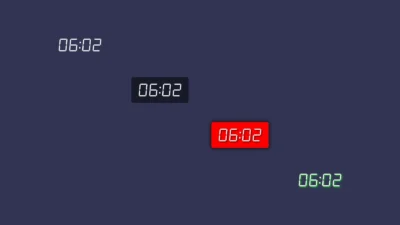
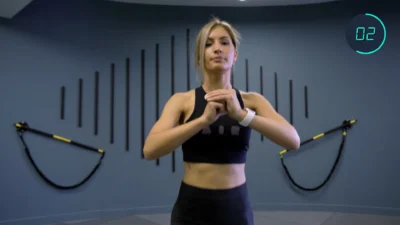
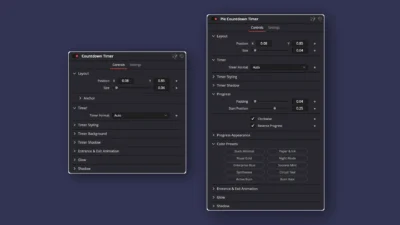


DaVinci Resolve Countdown & Count Up Timer Templates Pack | Circular, Pie & Lower Thirds
Create engaging videos with 10 customizable DaVinci Resolve countdown and count up timer templates, featuring circular timers, pie timers, lower thirds, and animated progress bars. Customize timer formats, progress bars, colors, positioning, and animations directly from the Inspector. No third-party plugins required.
$19.00
- Instant download
- One-click
.drfxinstallation - Free & Studio compatible
- Customizable Inspector controls
Create customizable countdown timers, count up timers, and animated timer overlays
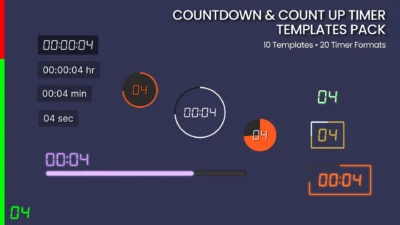
DaVinci Resolve Countdown & Count Up Timer Templates Pack is a collection of 10 professionally designed Fusion timer templates for creating countdown timers, count up timers, circular timer animations, pie timers, progress bar timers, and lower third timer overlays. Each template includes customizable timer formats, styling controls, color presets, entrance and exit animations, glow, and shadow settings.
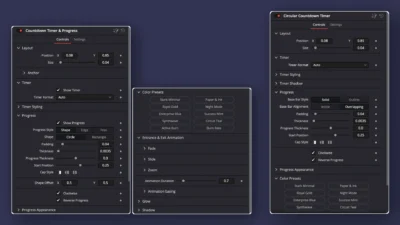
Create professional countdown and count up timer animations directly on the Edit page without building the animations manually. Simply add a timer template to your timeline, select your preferred format, and customize its appearance directly from the Inspector.
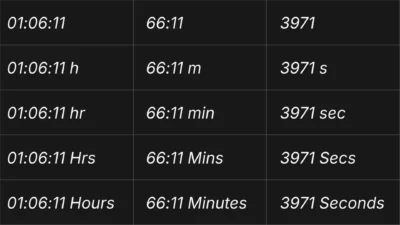
The pack includes 10 timer templates and 20 timer display formats, giving you a variety of styles for different video projects. Choose from digital timer text, circular progress rings, filled pie timers, customizable progress bars, and lower third timer designs. The automatic timer formats adapt to the clip duration, switching between seconds, minutes, and hours as needed.
Customize the timer position, size, font, tracking, opacity, colors, background, progress appearance, animation direction, and other available settings. Apply one of the 10 coordinated color presets to quickly change the timer’s appearance, or fine-tune the styling to match your video. Optional fade, slide, and zoom animations, along with glow and shadow effects, help you create timer graphics that fit your project.
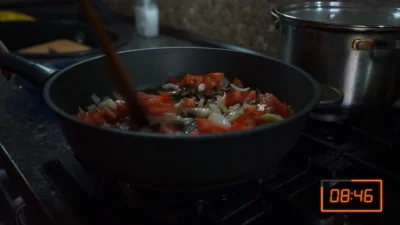
These DaVinci Resolve timer templates are suitable for YouTube videos, fitness and workout videos, cooking tutorials, study and Pomodoro videos, gaming streams, sports challenges, presentations, webinars, promotional videos, social media content, educational videos, and other projects that need clear, customizable countdown or count up graphics.
Included Templates
10 DaVinci Resolve Timer Templates
- Countdown Timer – A customizable countdown timer with optional background and shadow effects.
- Countdown Timer Lower Third – Displays a countdown timer in a customizable lower third layout.
- Circular Countdown Timer – Combines countdown text with a customizable circular progress ring.
- Pie Countdown Timer – Combines countdown text with an animated pie-style progress indicator.
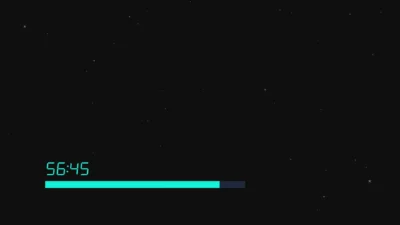
- Countdown Timer & Progress – Combines countdown text with shape, edge, or freely positioned progress bars.
- Count Up Timer – A customizable count up timer with optional background and shadow effects.
- Count Up Timer Lower Third – Displays a count up timer in a customizable lower third layout.
- Circular Count Up Timer – Displays an upward-counting timer with a circular progress design.
- Pie Count Up Timer – Combines an upward-counting timer with a filled pie-style progress indicator.
- Count Up Timer & Progress – Combines an upward-counting timer with customizable progress bar animations.
Features
- 10 customizable countdown and count up timer templates.
- 20 timer display formats per template, including automatic formats.
- Countdown and count up timer animations.
- Circular, pie, progress bar, and lower third timer designs.
- Automatic timer formats that adapt to the clip duration.
- Optional timer visibility and progress bar visibility in the Timer & Progress templates.
- Shape, Edge, and Free progress bar styles in the Timer & Progress templates, with additional customization options.
- 10 coordinated color presets for quick styling.
- Customizable timer position, size, font, tracking, opacity, and appearance.
- Optional backgrounds, base bars, glow, and shadow effects where available.
- Customizable fade, slide, and zoom entrance and exit animations.
- Adjustable progress direction, start position, thickness, and other progress settings where available.
- Frame rate and resolution independent, adapting to your project settings for flexible use across different video formats and timelines.
- Organized Inspector controls for convenient customization inside DaVinci Resolve.
- No third-party plugins required.
Compatibility
- Software: DaVinci Resolve 20 and newer (Free and Studio versions).
- Template Type: Title Templates.
- Operating Systems: Windows and macOS.
What You Will Receive
You will receive a ZIP file containing:
- Countdown_CountUp_Timer_Pack.drfx – An installable DaVinci Resolve template pack containing all 10 countdown and count up timer templates.
- Font Files – A folder containing font files.
- README.txt – Installation instructions and a quick start guide.
How to Install
- Download the ZIP package.
- Extract the ZIP file to access the template pack, font files, and installation instructions.
- Open the Font Files folder and install all included .ttf font files before installing the templates.
- Double-click the Countdown_CountUp_Timer_Pack.drfx file.
- Click Install (or Overwrite if updating an existing version).
- Open the Edit page in DaVinci Resolve and open the Effects Library.
- Navigate to Toolbox → Titles → DvBlend to find the templates.
- Use the Effects Library search bar to find the templates by searching for Timer or an individual template name.
- If the templates do not appear immediately, restart DaVinci Resolve.
For detailed step-by-step instructions: How to Install DaVinci Resolve Templates (.drfx Files)
How to Use
- Open the Edit page in DaVinci Resolve.
- Open the Effects Library and navigate to Toolbox → Titles → DvBlend.
- Drag your preferred timer template onto the timeline.
- Select the template clip and open the Inspector.
- Choose a timer format from the available options. Select an automatic format if you want the timer display to adapt to the clip duration.
- Customize the timer position, size, typography, colors, and other available settings.
- For templates with progress bars, adjust the progress style, position, direction, appearance, and other available controls.
- Customize the entrance and exit animations, glow, shadow, and other visual effects to match your project.
Customization
Each timer template includes organized Inspector controls for adjusting its appearance, layout, animation, and available effects. The exact controls vary by template.
Timer Format
- 20 timer display formats per template.
- Formats displaying hours, minutes, and seconds.
- Formats displaying minutes and seconds.
- Formats displaying seconds only.
- Automatic formats that adapt between seconds, minutes, and hours according to the clip duration.
Timer Styling
- Customizable font and font style.
- Adjustable tracking and opacity.
- Text emphasis options, including bold, italic, underline, and strikeout where supported.
- Customizable text appearance and color.
- Adjustable timer position and size.
Timer Background and Shadow
- Enable or disable the timer background where available.
- Adjustable horizontal and vertical background extension.
- Customizable background roundness, softness, opacity, and color.
- Optional timer shadow with adjustable offset, softness, opacity, and color.
Circular Countdown and Count Up Timers
- Circular progress ring around the timer text.
- Solid or outline base circle styles.
- Inside or overlapping progress bar alignment.
- Adjustable padding, thickness, and progress thickness.
- Customizable progress start position and cap style.
- Clockwise and reverse progress options.
- Customizable progress appearance and color.
Pie Countdown and Count Up Timers
- Filled pie-style progress animation.
- Adjustable padding and start position.
- Clockwise and reverse progress options.
- Customizable progress appearance and color.
Timer & Progress Bar Templates
- Show or hide the timer and progress bar independently in the Countdown Timer & Progress template.
- Shape progress bars with circular or rectangular designs.
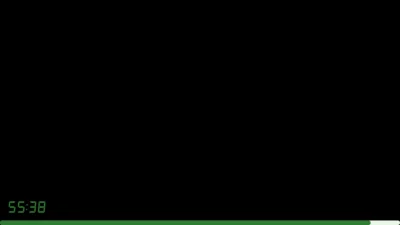
- Edge progress bars positioned at the bottom, top, left, or right.
- Free progress bars with horizontal or vertical orientation.
- Adjustable progress bar position, length, thickness, and other available settings.
- Customizable progress direction, start position, cap style, and appearance where available.
- Optional base bar with adjustable visibility, opacity, and color where available.
Lower Third Timer Templates
- Countdown or count up timer displayed in a lower third layout.
- Customizable position, size, typography, and colors.
- Optional background and shadow settings where available.
- Customizable entrance and exit animations, glow, and shadow.
Color Presets
Choose from 10 coordinated color presets to quickly change the appearance of the timer and its associated progress elements.
- Stark Minimal
- Paper & Ink
- Royal Gold
- Night Mode
- Enterprise Blue
- Success Mint
- Synthwave
- Circuit Teal
- Active Burn
- Burn Rate
Entrance & Exit Animation
- Optional intro and outro fade animations.
- Optional intro and outro slide animations.
- Slide directions: From Left, From Right, From Top, and From Bottom.
- Optional intro and outro zoom animations.
- Adjustable animation duration and easing settings.
Glow and Shadow
- Optional glow and shadow effect.
- Adjustable glow strength and size controls.
- Adjustable shadow offset, softness, opacity, and color.
Why You Will Love It
Instead of creating timer animations manually in Fusion, this pack gives you 10 ready-to-use DaVinci Resolve countdown and count up timer templates covering circular timers, pie timers, progress bar timers, and lower third designs.
Choose a template, select your preferred timer format, and customize its appearance directly from the Inspector. Use automatic timer formats to adapt the display to the clip duration, add a progress indicator where available, and apply coordinated color presets or optional animation effects to suit your video.
No Plugins Required
Built with native Fusion tools, this pack requires no third-party plugins, scripts, or additional software.
Simply install the included .drfx file and start creating customizable countdown timers, count up timers, circular timer animations, pie timers, and timer overlays in DaVinci Resolve directly from the Edit page.
Related products
-
Circle Highlight and Zoom Effect for DaVinci Resolve | Smart Circle Focus
$5.88 -
Corner Highlight and Zoom Effect for DaVinci Resolve | Smart Corner Focus
$6.99 -
Picture-in-Picture (PiP) Frame Pack for DaVinci Resolve | Animated Borders & Full-to-PiP Templates
$11.99 -
Free DaVinci Resolve Liquid Glass Effect | Liquid Glass Lite
$0.00