$ USD







Picture-in-Picture (PiP) Frame Pack for DaVinci Resolve | Animated Borders & Full-to-PiP Templates
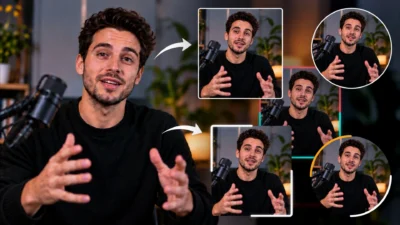
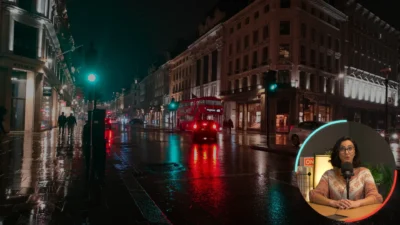
Create professional Picture-in-Picture (PiP) effects in DaVinci Resolve with 5 fully customizable templates, including Circle, Rectangle, animated borders, and Smart Full-to-PiP animation. No Fusion setup or manual keyframing required.
$11.99
- Instant download
- One-click
.drfxinstallation - Free & Studio compatible
- Customizable Inspector controls
Create Professional Picture-in-Picture Effects in Seconds
Create clean, modern, and fully customizable Picture-in-Picture (PiP) effects in DaVinci Resolve using this collection of 5 professionally designed PiP frame templates.
This pack includes circular and rectangular PiP frames, animated border variations, and a unique Full-to-PiP template that automatically transforms a full-screen clip into a Picture-in-Picture frame with customizable intro and outro animations.
Designed for a fast editing workflow, these templates eliminate the need to build Fusion node trees or manually animate PiP layouts. Simply drag, drop, and customize.
The templates are suitable for a wide variety of projects, including YouTube videos, tutorials, online courses, gaming videos, reaction videos, interviews, podcasts, presentations, product reviews, and more.
Every template is built entirely with native DaVinci Resolve Fusion tools, requiring no third-party plugins.
Included Templates
PiP Frame Circle
Create a circular Picture-in-Picture frame with 5 built-in position presets, customizable position, size, border, glow, shadow, and two built-in animation styles (Pop and Fade) with customizable animation controls, including optional exit animation.
PiP Frame Circle Flex
Everything included in PiP Frame Circle, plus 6 customizable border styles with static and animated border effects, each featuring its own dedicated customization controls.
PiP Frame Rectangle
Create a rectangular Picture-in-Picture frame with 5 built-in position presets, adjustable width, height, built-in aspect ratio presets (Free, 16:9, 9:16, 1:1, 4:3, 3:4, and 21:9), corner radius, border, glow, shadow, and two built-in animation styles (Pop and Fade) with customizable animation controls, including an optional exit animation.
PiP Frame Rectangle Flex
Everything included in PiP Frame Rectangle, plus 6 customizable border styles with static and animated border effects, each featuring its own dedicated customization controls.
Smart Full-to-PiP Frame
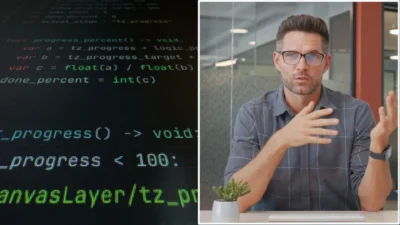
Automatically transform a full-screen clip into a customizable Picture-in-Picture frame with optional intro and outro animations. Ideal for talking-head videos, tutorials, presentations, interviews, podcasts, and B-roll workflows without manually creating keyframes.
Key Features
- 5 professionally designed Picture-in-Picture (PiP) templates
- Circle and Rectangle PiP frames
- Smart Full Screen to PiP animation
- 5 built-in position presets
- Bottom Right
- Bottom Left
- Top Right
- Top Left
- Center
- Fine-tune positioning using Margin, Offset X, and Offset Y
- Built-in aspect ratio presets (Rectangle templates)
- Free
- 16:9
- 9:16
- 1:1
- 4:3
- 3:4
- 21:9
- Automatically locks the frame proportions while resizing for faster and more precise PiP layouts
- Fully customizable frame size and position
- Independent Content Scale control to zoom the media inside the PiP frame without changing the frame size
- Pan controls to reposition the media inside the frame while keeping the PiP frame fixed
- Adjustable PiP scale
- Rotation controls
- Horizontal and Vertical Flip
- Adjustable edge softness
- Adjustable corner radius (Rectangle templates)
- Optional customizable border
- 6 built-in border styles (Flex templates)
- Single Static
- Single Orbit
- Dual Static
- Dual Orbit
- Dual Switch
- Dual Breathing
- Fully customizable animated border controls
- Independent dual-color support for selected border styles
- Optional border glow
- Optional shadow
- Adjustable opacity
- Built-in Pop and Fade animation styles
- Optional exit animation
- Customizable animation duration
- Multiple easing curve options
- Beginner-friendly Inspector controls
- Drag-and-drop workflow
- No manual Fusion setup required
- No third-party plugins required
Smart Full-to-PiP Workflow
The included Smart Full-to-PiP Frame automates one of the most common editing workflows in DaVinci Resolve.
Simply drag the template onto your clip to automatically animate it from full screen into a customizable Picture-in-Picture frame. The clip can remain as a PiP throughout your B-roll, presentation, or secondary footage, then optionally animate back to full screen at the end.
Both intro and outro animations can be enabled or disabled independently, with customizable duration and easing controls, eliminating the need to manually create transform keyframes.
Compatibility
- Software: DaVinci Resolve 20 or later (Compatible with both Free and Studio versions)
- Operating System: Windows and macOS
What You’ll Receive
You’ll receive a ZIP file containing:
- PiP_Frames_Pack.drfx (One-click installable template pack containing all 5 PiP templates)
- README.txt (Installation guide and basic usage instructions)
Installation
- Download the ZIP file.
- Extract the ZIP archive.
- Double-click the included .drfx file.
- Click Install (or Overwrite if updating an existing version).
- DaVinci Resolve will automatically import the templates into the Effects Library.
- If the templates do not appear immediately, restart DaVinci Resolve.
For detailed step-by-step instructions: How to Install DaVinci Resolve Templates (.drfx Files)
How to Use
- Open the Edit page in DaVinci Resolve.
- Open the Effects Library.
- Navigate to Toolbox → Effects → DvBlend → PiP Frames.
- Alternatively, use the search bar in the Effects Library and search for keywords such as PiP, Circle, Rectangle, or Full-to-PiP.
- Drag a template onto your video clip in the timeline.
- Select the clip and customize the template using the Inspector panel.
Can’t find the Inspector controls?
- Select the clip with the template applied.
- Click the Inspector button in the top-right corner of DaVinci Resolve.
- Open the Effects tab, then select Fusion to access all template controls.
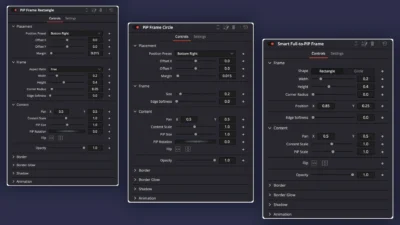
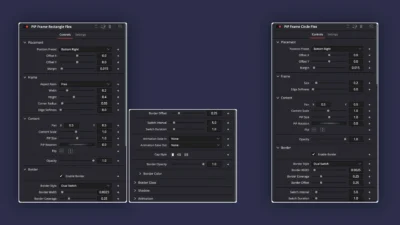
Fully Customizable Inspector Controls
Depending on the selected template, you can customize the following controls:
Placement
- Position Presets
- Margin
- Offset X
- Offset Y
Frame
- Shape (Smart Full-to-PiP Frame)
- Aspect Ratio (Rectangle Templates)
- Width
- Height
- Size
- Corner Radius
- Edge Softness
Content
- Pan X/Y
- Content Scale
- PiP Size
- PiP Rotation
- Horizontal & Vertical Flip
- Opacity
Border
- Enable/Disable
- Border Style (Flex Templates)
- Border Width
- Border Coverage
- Border Offset
- Cap Style
- Border Opacity
- Border Color
Border Glow
- Enable/Disable Border Glow
- Glow Strength
- Glow Size
Shadow
- Enable/Disable Shadow
- Shadow Strength
- Shadow Distance
- Shadow Angle
- Shadow Softness
- Shadow Color
Animation
- Enable Intro Animation (Smart Full-to-PiP Frame)
- Enable Outro Animation (Smart Full-to-PiP Frame)
- Enable Pop Animation
- Enable Fade Animation
- Animation Duration
- Ease In
- Ease Out
The above list highlights the primary Inspector controls. Additional controls may be available depending on the selected template and border style.
What Makes This Pack Different
Unlike many basic PiP templates, this pack gives you independent control over both the PiP frame and the content inside the frame. The Content Scale and Pan controls let you adjust the visible portion of the media without changing the frame size or position, making it easier to achieve the exact composition you want.
In addition, the Flex templates include animated border styles with dedicated customization controls, while the Smart Full-to-PiP Frame automates a common editing workflow by transforming a full-screen clip into a customizable PiP frame without manually creating transform keyframes.