
USD
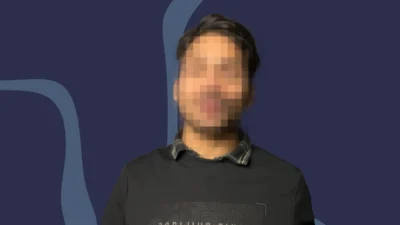
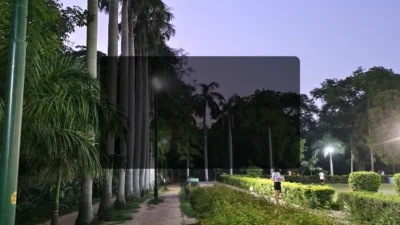
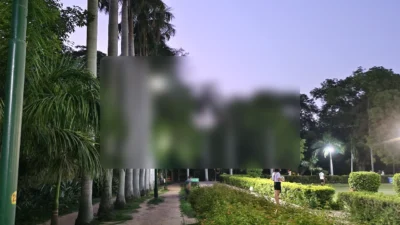
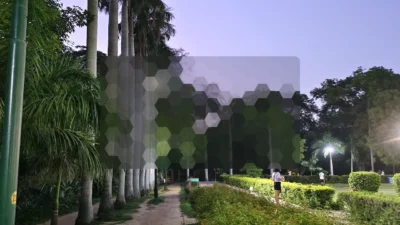


Face Blur, Mosaic and Motion Masking Toolkit for DaVinci Resolve | Mask FX
USD
Mask FX is a powerful face blur and shape based masking tool for DaVinci Resolve that lets you apply blur, mosaic, darken, black and white, and color shift effects with optional AI motion tracking to follow moving subject.
$9.00
Face blur, mosaic and motion masking with shape based control
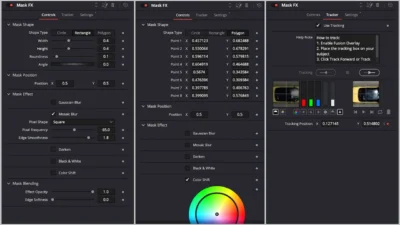
Mask FX is a shape based masking and motion tracking tool for DaVinci Resolve built entirely inside Fusion. It allows you to apply blur, mosaic, darken, black and white, and color shift effects inside customizable masks that can either stay fixed or automatically follow a moving subject using AI powered tracking.
The effect is designed as a complete masking system. Users can manually position and animate a mask, or enable tracking so the mask locks onto a face, object, or any moving element in the shot. All mask shapes, effects, and tracking are controlled directly from the Inspector without needing to open the Fusion page or manually connect nodes.
Mask FX works on any clip or adjustment clip and is suitable for blurring, background defocus, and creative visual effects.
Built inside Fusion, the template runs without external plugins, footage, or dependencies and integrates directly into the Edit Page workflow.
How Mask FX works
Mask FX combines three core systems:
- First is the shape based masking system. The mask defines the area where effects are applied. Users can choose between Circle, Rectangle, or Polygon shapes. The Polygon shape provides eight adjustable points that can be moved freely to create custom shapes for faces, objects, or irregular areas.
- Second is the effect system. Multiple visual effects can be enabled inside the mask, including Gaussian Blur, Mosaic Blur, Darken, Black and White, and Color Shift. Each effect has its own controls that appear only when the effect is enabled, keeping the interface clean and focused.
- Third is the motion tracking system, available in the Tracker tab of the inspector. When Use Tracking is enabled, the mask automatically follows the subject using AI powered tracking. The user places a tracking box on the subject and runs the tracker forward or backward. The mask position is then driven by the tracking data without requiring any manual linking.
The same mask can be used in static mode for fixed areas or in tracked mode for moving subjects. When Use Tracking is disabled, the mask remains stationary and can be positioned manually using the Mask Position control.
Features of this template
- Shape based masking: Choose between Circle, Rectangle, and Polygon mask types. The Polygon shape provides eight editable control points for creating custom mask shapes.
- Multiple mask effects: Enable one or more effects inside the mask:
- Gaussian Blur
- Mosaic Blur with adjustable pixel shape, frequency, and edge smoothness
- Darken
- Black and White
- Color Shift
- Mask blending controls: Control Effect Opacity to blend the masked effect into the original image. Use Edge Softness to feather the edges of the mask for smooth transitions.
- Optional AI powered motion tracking: Enable Use Tracking to attach the mask to a moving subject. Track faces, heads, objects, or any visible feature without manual keyframing.
- Manual mask positioning: When tracking is disabled, the mask can be positioned using X and Y controls for static shots or precise placement.
- Works on any clip: The effect can be applied directly to video clips or to an Adjustment Clip to affect multiple layers at once.
- Fusion based and lightweight: Built entirely inside Fusion with no external assets or plugins required.
Tracking workflow
To use motion tracking:
- Select the clip with Mask FX applied.
- Open Inspector and switch to the Tracker tab.
- Enable Use Tracking.
- Enable Fusion Overlay in the viewer.
- A tracking box appears over the image.
- Drag the tracking box onto the subject you want to track.
- The Inspector shows two preview viewers:
- The left viewer displays the image for positioning the tracking box.
- The right viewer shows the tracking data once tracking begins.
- If the playhead is at the start of the clip, click Track Forward.
- If the playhead is at the end of the clip, click Track Backward.
- If the playhead is in the middle of the clip, click Track Forward first. After it completes, without moving the playhead, click Track Backward to track the earlier frames.
- Once tracking finishes, the mask will follow the subject for the entire tracked range.
Compatibility
- Software: DaVinci Resolve 18 or newer, Free and Studio
- Operating Systems: Windows, macOS, Linux
Note: The advanced AI Intellitrack option is available only in DaVinci Resolve Studio. On the free version of Resolve, the effect will use the standard point tracker instead, which still allows motion tracking but with classic tracker controls.
What is included
You will receive a ZIP file containing:
- MaskFX.drfx: An installable Mask FX effect for DaVinci Resolve
- README.txt: Installation and usage guide
How to install
- Download and unzip the package.
- Double click MaskFX.drfx.
- Click Install (or Overwrite if updating).
- Restart DaVinci Resolve.
On the Edit Page, go to: Effects Library > Toolbox > Effects > DvBlend > Mask FX
You can also search for Mask FX using the Effects Library search bar.
How to use
- On the Edit Page, drag Mask FX onto a clip or Adjustment Clip.
- Select the clip and open Inspector > Effects > Fusion > Mask FX.
- Choose a mask shape:
- Circle
- Rectangle
- Polygon
- Position the mask:
- Use Mask Position controls for static placement.
- Or open the Tracker tab and enable Use Tracking for motion tracking.
- Enable one or more effects:
- Gaussian Blur
- Mosaic Blur
- Darken
- Black and White
- Color Shift
- Adjust effect strength, edge softness, and opacity.
- If tracking is enabled, use the tracking controls to make the mask follow the subject.
Related products
-
Rectangle Highlight and Zoom Effect for DaVinci Resolve | Smart Rectangle Focus
$5.88 -
Text Reveal Inward & Outward Titles for DaVinci Resolve | 6 Animation Presets
$8.00 -
Animated Grid Background Generator for DaVinci Resolve | Dynamic Grid
$3.99 -
Smooth Color Glow Wipe Transition Template for DaVinci Resolve | Radiant Linear Wipe
$1.99
Reviews
There are no reviews yet.