$ USD
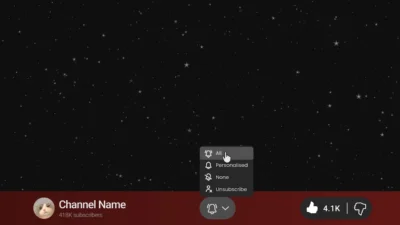
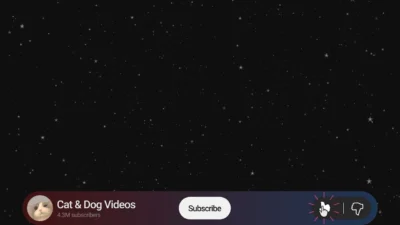
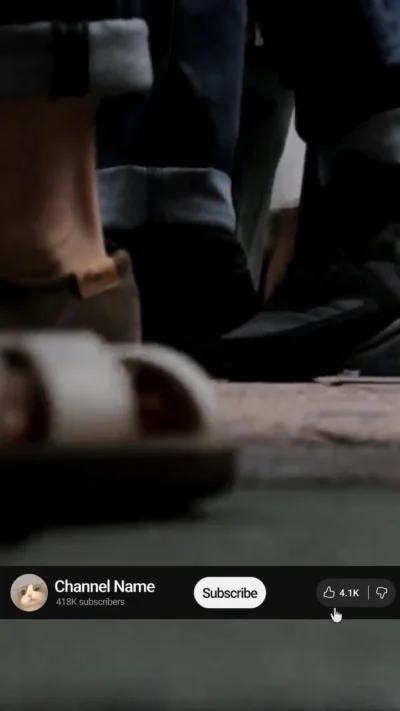


YouTube Like and Subscribe Animation Titles for DaVinci Resolve | YouTube CTA Pack
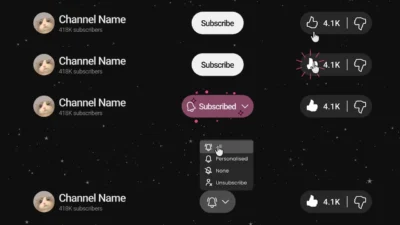
Professional YouTube like, subscribe, and notification CTA title presets for DaVinci Resolve with realistic cursor animations, fully customizable, and trim-safe controls. Drag and drop preset.
$9.00
Add realistic YouTube-style like, subscribe, and notification animation
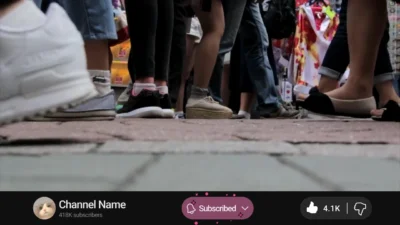
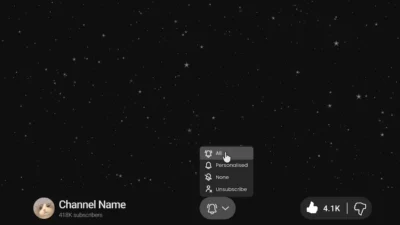
The YouTube CTA Pack includes professional title presets that you can drag and drop directly onto your timeline on the edit page. Built entirely in Fusion, these titles simulate authentic YouTube interactions using smooth cursor movements, button presses, pop-up transitions, and clean notification cues.
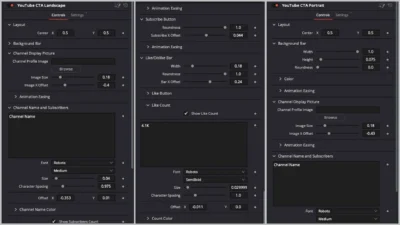
With well-organized Inspector controls, you can easily customize your channel profile image, text, colors, positions, background styling, animation timing, and button alignment. Both Landscape (16:9) and Portrait (9:16) versions are included and installed together, making the pack suitable for all major video formats.
This template pack is ideal for YouTubers, editors, educators, tech creators, vloggers, tutorial makers, and content creators who want polished, attention-grabbing call-to-action animations without needing any Fusion experience.
Features of this template
- Two Title Presets Included: YouTube CTA Landscape and YouTube CTA Portrait. Installed together through a single template file.
- Fully Animated CTA Sequence: Like > Subscribe > Notification Bell ON.
- Cursor Interaction System: Accurate cursor movement, button clicks, and press animations.
- Dynamic Pop-Up Animations: Background Bar, Channel DP, Name, Subscriber Count, Subscribe Button, and Like/Dislike buttons.
- Background Bar Controls: Width, height, corner radius, and color controls.
- Customizable Channel Section: Upload your own DP (channel profile/display picture), change username, edit subscriber count, and more.
- Dedicated Like/Dislike Section: Adjustable bar, icons, counts, divider width, and positioning.
- Subscribe Button Customization: Roundness and offsets controls.
- Animation Easing Controls: Linear, Easing, and Custom curve options for all major components.
- Complete Animation Timing System:
- Pop-Up Duration
- Component Delay
- Cursor Action Duration
- Cursor Press Duration
- Like Animation Duration
- and more
- Cursor Re-Alignment Controls: Adjust cursor X-position for Like and Subscribe presses when moving UI elements
- Works Directly on the Edit Page: No need to open Fusion
- No plugins required – 100% Fusion-built and procedural
Compatibility
- Software: DaVinci Resolve 18 or newer, Free and Studio
- Operating Systems: Windows, macOS, Linux
What is Included
You will receive a ZIP file containing:
- A Font Files folder containing Roboto.zip. A Roboto font family (Google Font) used by default in the templates.
- YouTubeCTA.drfx: A one-click installable template file that installs both the Landscape (16:9) and Portrait (9:16) title presets at once.
- README.txt: Installation and usage instructions.
How to Install
Step 1: Install Fonts (Required)
- Open the Font Files folder
- Extract Roboto.zip
- Select all .ttf files
- Install the fonts on your system
Important: Install fonts before installing the template to avoid missing font issues.
Step 2: Install Title Template
- Double-click YouTubeCTA.drfx
- Click Install
- Restart DaVinci Resolve (recommended)
Both Landscape and Portrait titles will be installed automatically.
Step 3: Access the Templates
- On the Edit Page, go to:
- Effects Library > Toolbox > Titles > DvBlend
- Or search for YouTube CTA in the search bar.
How to Use
- Drag the YouTube CTA title onto your timeline above any clip, or use it standalone.
- Select the title and open Inspector > Video > Title.
- Update your branding:
- Channel Profile Image
- Channel Name
- Subscriber Count
- Like Count (if you want to)
- Customize the CTA layout:
- Background Bar size, color & style
- Text fonts, colors & spacing
- Like/Dislike bar & divider
- Subscribe button design
- If you move Subscribe and/or Like button, adjust:
- Cursor Like X
- Cursor Subscribe X
- so the cursor interacts with the correct position
- Adjust animation timing:
- Pop-Up Duration, Component Delay, Hold Duration, Press Duration, etc.
- Preview and Render. Your CTA is ready to use!
Inspector Controls Explained
- Layout
- Center: Move the entire YouTube CTA animation anywhere on the screen. This shifts all elements together (DP, name, buttons, etc.).
- Background Bar
- Width: Adjust how wide the background bar is.
- Height: Adjust how tall the background bar is.
- Roundness: Set how rounded the corners of the bar should be.
- Color: Choose between a solid color or gradient, and adjust the bar’s color exactly as you want.
- Animation Easing: Control the pop-up animation curve of the background bar.
- Linear: constant speed
- Easing: smoother in/out animation (fully customizable)
- Custom: uses the default curve I set, which you can edit freely
- Channel Display Picture
- Channel Profile Image: Select your channel’s DP. Tip: Use a square image like 720×720 or 500×500.
- Image Size: Change how big the profile picture appears.
- Image X Offset: Move the picture left or right.
- Animation Easing: Same animation curve options as the Background Bar’s Motion Curve, but applied only to the DP.
- Channel Name & Subscribers
- Text Input Box (Channel Name): Type your channel name here.
- Font: Choose the font you want.
- Style: Select Regular, Medium, Bold, etc.
- Size: Change text size.
- Character Spacing: Adjust space between characters.
- Offset: Move the channel name horizontally or vertically.
- Channel Name Color: Change the channel name color.
- Show Subscribers Count: Turn the subscriber count text on/off.
- Text Input Box: Type your subscribers (e.g., 291K subscribers).
- Offset: Move the subscriber count text around.
- Subscribers Count Color: Change the color of the subscriber count.
- Animation Easing: The same animated pop-up curve settings, applied to both channel name and subscriber count.
- Subscribe Button
- Roundness: Set how rounded the Subscribe button looks.
- Subscribe X Offset: Move the button left or right.
- Animation Easing: Pop-up animation curve for the Subscribe button.
- Like / Dislike Bar
- Width: Set the width of the bar that contains: Like Button, Like Count, Divider, and Dislike Button.
- Roundness: Round the corners of this bar.
- Bar X Offset: Move the whole like/dislike bar horizontally.
- Like Button
- Like Button X Offset: Move the like button left or right.
- Like Count
- Show Like Count: Turn the text value on/off.
- Text Input Box: Enter the number (e.g., 459, 3.4K).
- Font: Choose a font.
- Style: Regular, Medium, Bold, etc.
- Size: Change text size.
- Character Spacing: Adjust spacing between characters.
- Offset: Move the like count text.
- Count Color: Set the like count color.
- Divider
- Divider Width: Set how thick the vertical divider is.
- Divider X Offset: Move the divider horizontally.
- Dislike Button
- Dislike Button X Offset: Move the dislike button left or right.
- Animation Easing: Animation curve for the like / dislike bar.
- Cursor Controls
- Cursor Size: Change the cursor icon size.
- Cursor Like X: Adjust the cursor position for the Like button press. Use this only if you moved the like/dislike bar or the like button. How to use: Move the playhead to the like-press moment. If the cursor is not touching the Like button correctly, adjust this slider.
- Cursor Subscribe X: Same as above, but for the Subscribe button press. How to use: Move the playhead to the subscribe-press moment. Adjust until the cursor aligns perfectly with the button.
- Animation Controls
- Pop-Up Duration: Controls how fast each element/component pops up (Background Bar, Channel DP, Channel Name, Subscribe Button, and Like/Dislike Bar).
- Component Delay: Adds delay between each component’s pop-up animation. Higher value > they appear one after another instead of together.
- Cursor Action Duration: Controls how long the cursor takes to do its action such as going onto the like button.
- Cursor Press Duration: Controls how long the cursor takes to press a button.
- Like Animation Duration: Adjust how long the like animation takes to complete.
- Hold Duration: Controls the pause between actions (example: pause after Like and before Subscribe).
- Subscribe Transition Hold: How long the Subscribe button stays in its “pressed” state before turning into Subscribed.
- Subscribed Hold: Controls how long the subscribed animation takes to finish.
Last Update
Date: 9 February 2026
Related products
-
Star and Particle Motion Background Generator for DaVinci Resolve | Stellar Motion
$4.99 -
Slide Text Animation Template for DaVinci Resolve | TextFlow 12 – Directional Slide
$3.88 -

Free Heat Wave and Mirage Distortion Template for DaVinci Resolve | Heat Haze
$0.00 -
Free Customizable Cinematic Transition Template for DaVinci Resolve | Texture Wipe
$0.00