
- $ USD
- € EUR
- £ GBP
- CA$ CAD
- A$ AUD
- ₹ INR
- CHF
- ¥ JPY
- S$ SGD
- HK$ HKD
- NZ$ NZD
- kr SEK
- zł PLN
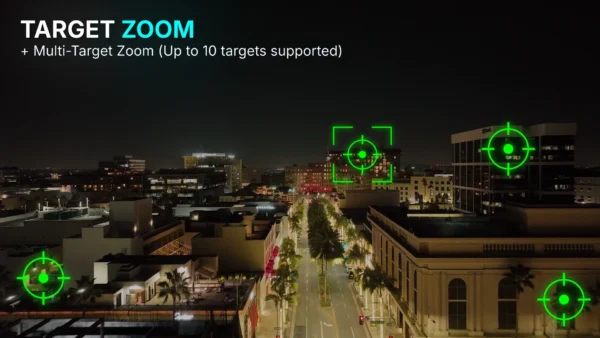

Smooth Zoom Effect Template for DaVinci Resolve (Target & Multi-Target)
Create smooth, precise zoom animations in DaVinci Resolve without manual keyframing. Zoom into a single area or multiple targets with up to 10 zoom points for greater control and flexibility.
$14.99
- Works with Free & Studio
- Customizable Inspector Controls
- Smooth Real-Time Playback
- Resolution & Aspect-Ratio Independent
- One-Click
.drfxInstallation
Smooth, Keyframe-Free Single & Multi-Target Zooms on the Edit Page
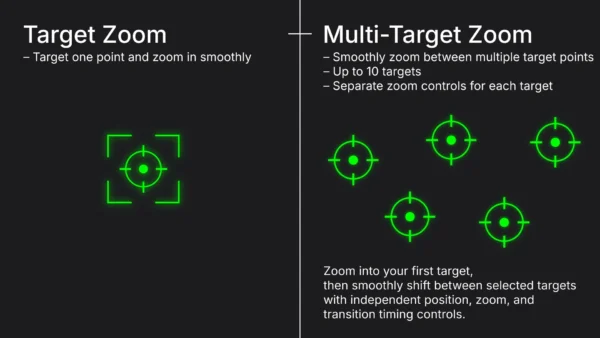
Stop slicing clips, fighting Transform keyframes, or working around the limits of DaVinci Resolve’s built-in Dynamic Zoom. This pack includes both Target Zoom and Multi-Target Zoom – two native, real-time Fusion effects engineered to zoom cleanly into a single focus point or glide seamlessly across up to 10 different targets inside one clip.
Ideal for software tutorials, map walkthroughs, and data-heavy presentations, these effects are simple to use. Just drag an effect onto your clip or apply it to an adjustment clip, position the on-screen crosshair over the area you want to highlight, and let the template handle the framing, timing, easing, and optional motion blur automatically.
2 Templates Included
Target Zoom + Multi-Target Zoom in one .drfx installer
1 to 10 Focus Targets
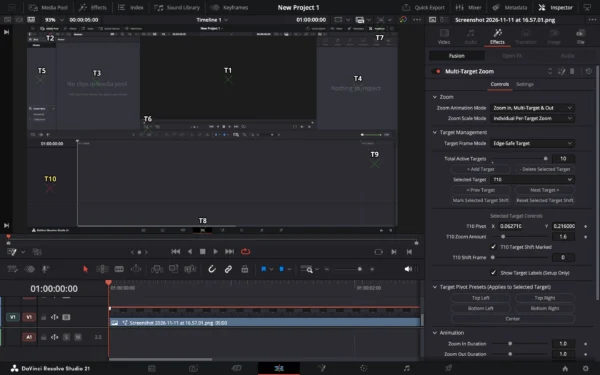
Drag on-screen handles with optional T1–T10 setup labels
Edge-Safe Framing
Zero black borders even on corners & vertical 9:16 clips
Free & Studio Ready
100% native Fusion tools built for real-time Edit playback
Two Dedicated Tools Built for Different Editing Speeds
Instead of forcing a heavy multi-target interface onto simple punch-ins or limiting you to a single zoom point when you need a guided tour – this pack gives you the right tool for every shot.
Target Zoom (Single Target)
Drop it onto your video when you want one clean zoom with exact pacing and zero clutter.
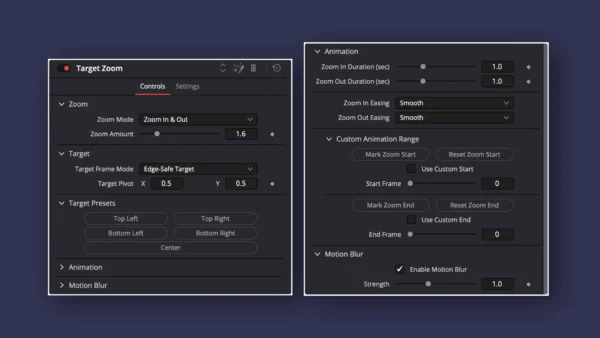
- 5 Zoom Modes: Zoom In & Out, Zoom In Only, Zoom Out Only, Continuous Zoom In, and Continuous Zoom Out.
- Instant Target Alignment: Drag the on-screen pivot crosshair or click Top Left, Top Right, Bottom Left, Bottom Right, or Center.
- Independent In/Out Control: Set separate Zoom In and Zoom Out durations and easing curves.
- Custom Animation Range: Trigger the zoom anywhere inside a longer clip using Mark Zoom Start and Mark Zoom End. No razor cuts needed.
Multi-Target Zoom (Up to 10 Targets)
Zoom into Target 1, glide smoothly to Target 2, Target 3, and up to Target 10, then return cleanly to full frame – all inside a single effect.
- 5 Multi-Target Modes: Zoom In, Multi-Target & Out; Zoom In, Multi-Target & Hold; Start Zoomed, Multi-Target & Out; Start Zoomed, Multi-Target & Hold; and Zoom In, Continuous & Out.
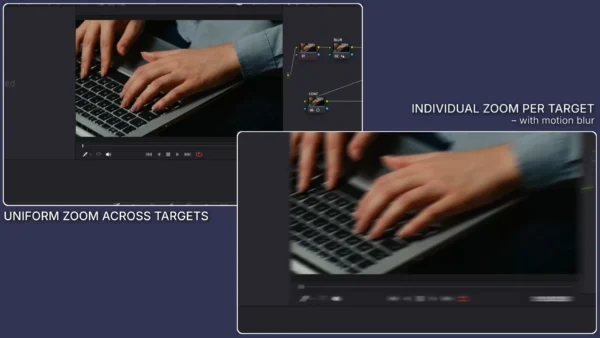
- Individual or Uniform Zoom: Give every target its own zoom magnification or lock all targets to one master Uniform Zoom Amount slider.
- 1-Click Target Creation: Scrub to your desired arrival frame and click + Add Target. The new target is created, positioned on a staggered handle, and marked automatically.
- Clean Dynamic Inspector: Only the currently selected target’s controls appear under Selected Target Controls, keeping the panel clutter-free even with 10 targets.
| Capability | Target Zoom | Multi-Target Zoom |
|---|---|---|
| Targets Per Clip | 1 Focus Target | 1 to 10 Targets |
| Animation Modes | 5 Single-Target Modes (including Continuous In & Out) | 5 Multi-Target Modes (including Continuous Tour & Hold) |
| Zoom Scale Options | Single Zoom Amount (1.0x–10.0x) | Individual Per-Target Zoom or Uniform Zoom |
| On-Screen Controls | Draggable Diagonal Pivot Crosshair | Staggered Crosshairs + Toggleable T1–T10 Setup Labels |
| Framing Modes | Edge-Safe Target & Exact Pivot-Based Target | Edge-Safe Target & Exact Pivot-Based Target |
| Timing & Easing | Separate In & Out Durations + 7 Easing Curves | Separate In, Out & Target-Shift Durations + 7 Easing Curves |
| Custom Clip Range & Motion Blur | Mark Zoom Start / End + Synced Motion Blur | Mark Zoom Start / End + Adaptive Zoom & Pan Motion Blur |
Add, Mark, and Preview Targets in Seconds
Setting up multi-point zooms in Fusion usually means juggling dozens of position and scale splines. Multi-Target Zoom turns that entire process into a straightforward Edit-page workflow:
- Arrival-at-Playhead Timing: Move the playhead to the exact frame where you want the camera to land on your next subject and click + Add Target. The transition starts earlier automatically using your Target-Shift Duration and finishes right at your playhead, so you see the final framing live while you position it.
- No Overlapping Handles: Each new target spawns at a clean staggered diagonal offset so handles never pile up in the center, and Show Target Labels (Setup Only) displays bold T1–T10 badges above each handle during setup.
- Smart Target Deletion & Renumbering: Deleting any target automatically shifts and renumbers the remaining targets (T3 becomes T2, T4 becomes T3) while preserving every position, zoom amount, and marked shift frame with full Undo support.
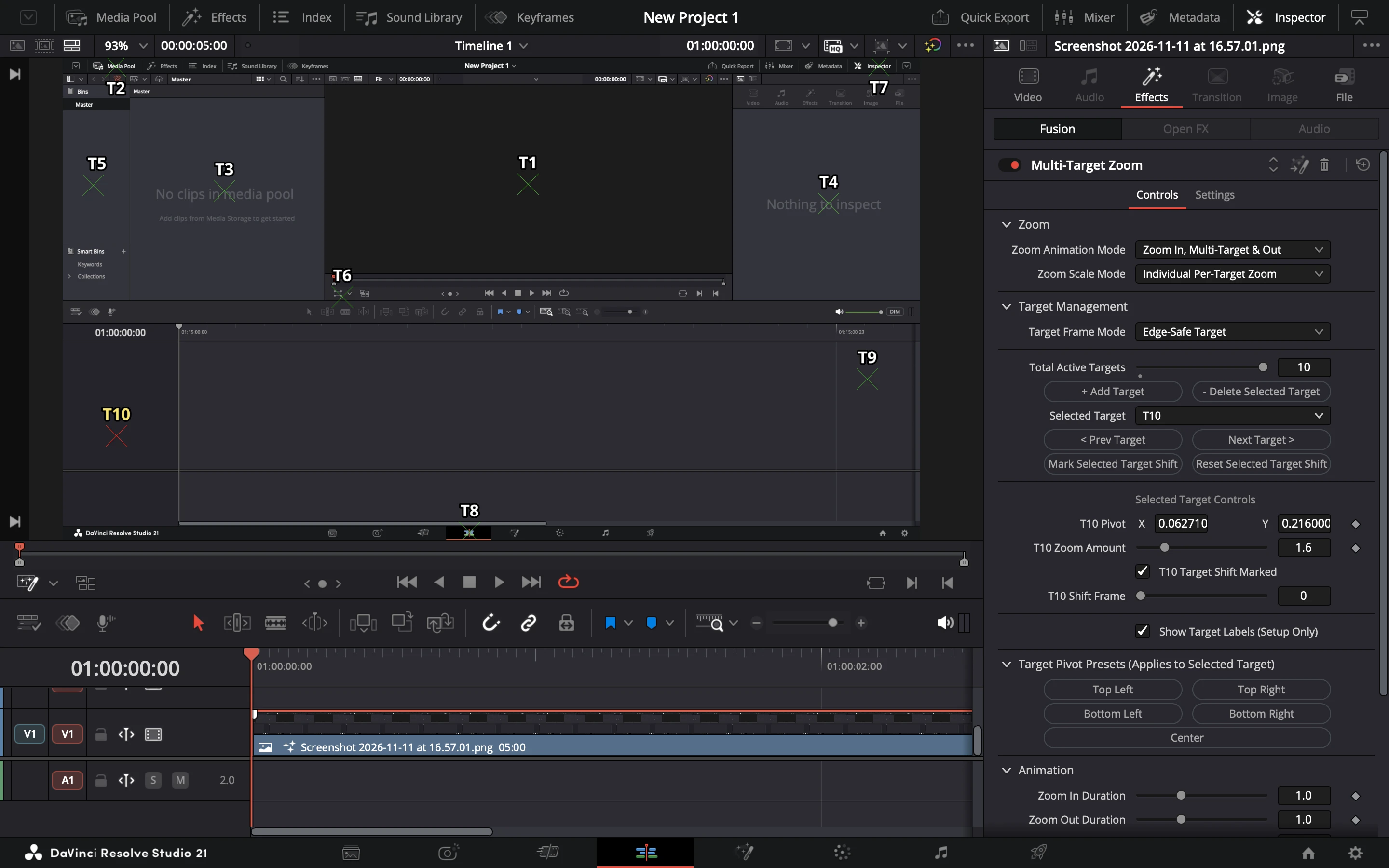
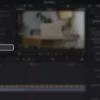
All 10 targets positioned directly in the Edit page Viewer with Fusion Overlays and toggleable T1–T10 setup labels enabled.
Zoom Into Extreme Corners Without Ever Showing Black Edges
Zooming into a toolbar, color wheel panel, or bottom-corner icon normally pulls the boundary of your video off-screen and exposes distracting black borders. Both templates give you precise control over edge behavior and alignment:
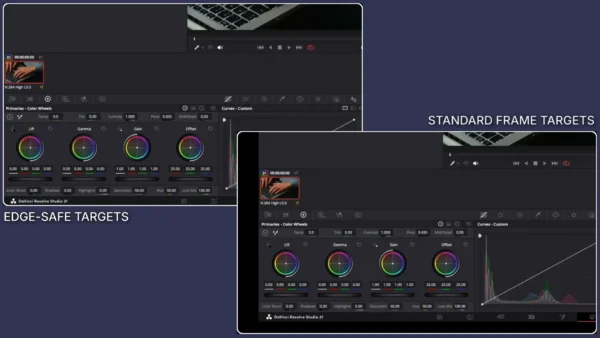
- Edge-Safe Target (Default): Smoothly frames your chosen corner or edge target while mathematically clamping all four borders flush to the viewport – guaranteed borderless across 16:9, 9:16 vertical, 1:1 square, and 4K timelines.
- Exact Pivot-Based Target: Magnifies strictly around your exact X/Y pivot coordinate without recentering. Ideal whenever you want a specific pixel, corner anchor, or screen boundary pinned in place.
- One-Click Target Presets: Snap your active target immediately to Top Left, Top Right, Bottom Left, Bottom Right, or Center, then fine-tune visually in the Viewer.
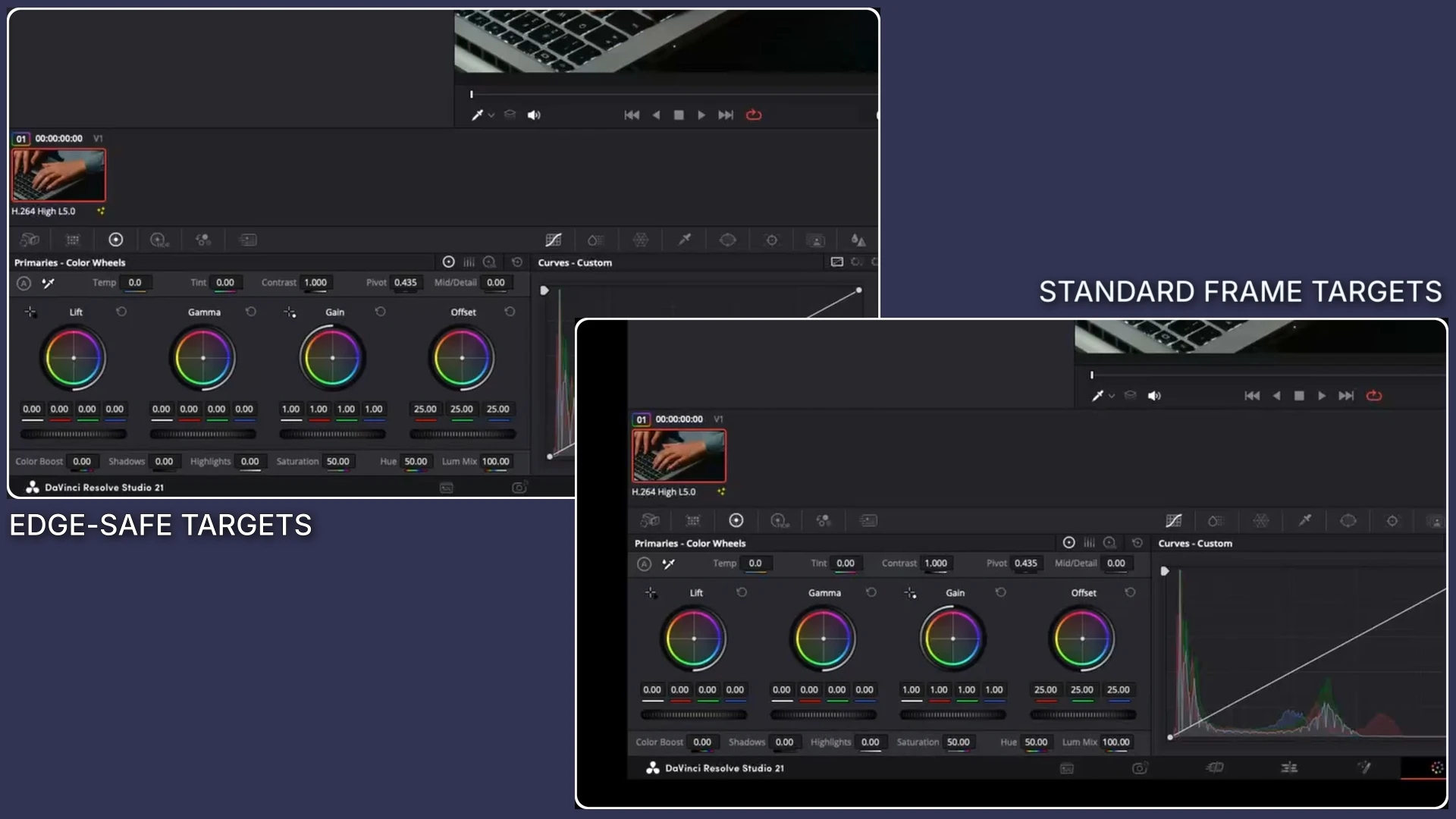
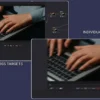
Bottom-left corner zoom comparison: Edge-Safe Target (top-left) keeps the entire viewport filled, while standard framing (bottom-right) exposes black edges.
Powerful Controls That Stay Out of Your Way
Both templates are organized into five logical collapsible sections: Zoom, Target / Target Management, Target Presets, Animation, and Motion Blur. So every control sits right where you expect it.
Target Zoom: Streamlined Single-Target Inspector
Built for fast, clutter-free single-point zooms directly on the Edit page:
- 5 Zoom Modes & Framing Control: Choose Zoom In & Out, In Only, Out Only, or Continuous In/Out, paired with Edge-Safe Target or Exact Pivot-Based Target.
- Separate In & Out Timing: Dial in independent Zoom In and Zoom Out durations and easing curves without touching keyframes.
- Custom Animation Range: Click Mark Zoom Start and Mark Zoom End to trigger a zoom anywhere inside a longer clip without cutting your timeline.
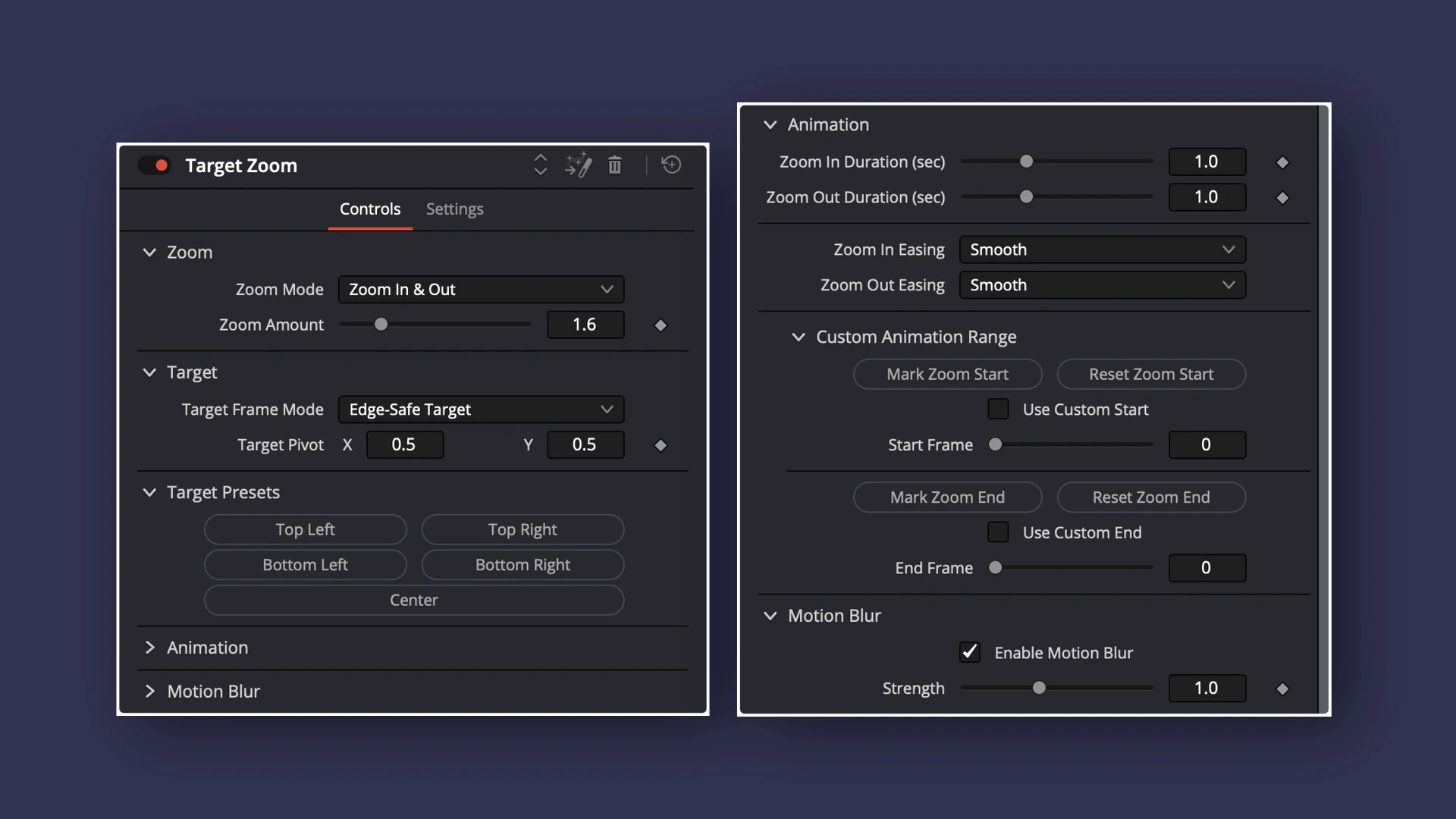
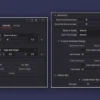
Target Zoom Inspector: compact single-point controls for fast punch-ins, callouts, and continuous push-ins.
Multi-Target Zoom: Dynamic 10-Target Inspector
Expands the same organized layout to manage up to 10 sequential targets cleanly:
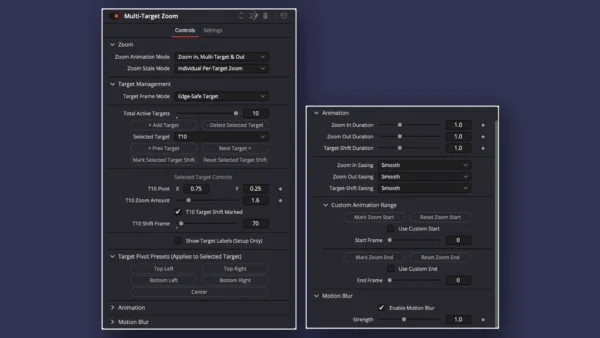
- Selected Target Controls: Choosing T1 through T10 displays only that target’s Pivot, Zoom Amount, and Target Shift settings. No scrolling past 10 stacked menus.
- Adaptive Zoom Scale Mode: Use Individual Per-Target Zoom for custom magnification on each stop, or switch to Uniform Zoom to reveal one master Uniform Zoom Amount slider.
- Dedicated Target-Shift Controls: Set independent Target-Shift Duration and Easing alongside 1-click Mark/Reset Selected Target Shift buttons.
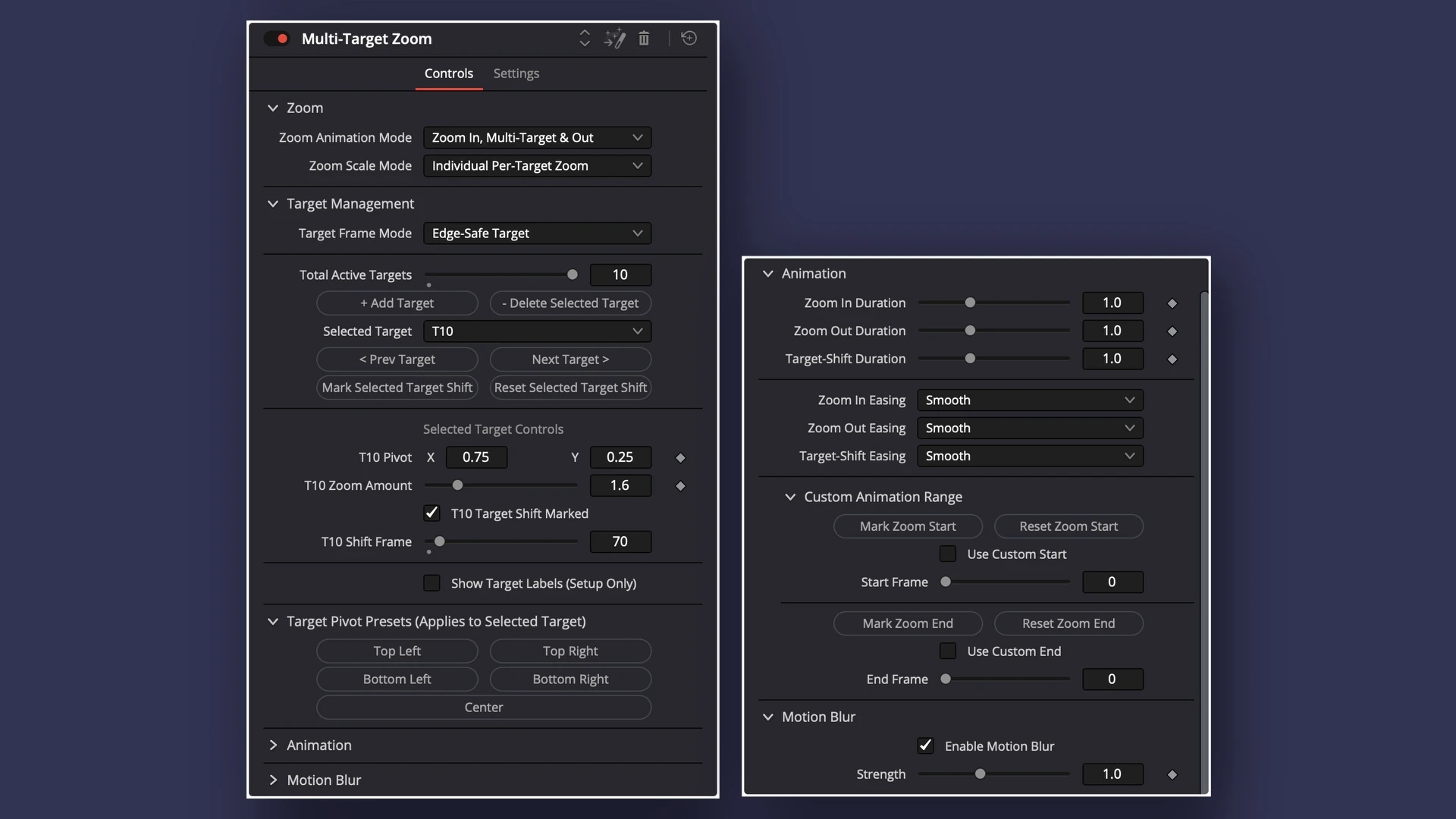
Multi-Target Zoom Inspector: manage up to 10 targets cleanly without cluttering the Edit page Inspector.
7 Precision Easing Curves & Adaptive Velocity-Synced Motion Blur
Every zoom-in, target-to-target shift, and zoom-out has its own duration and easing control paired with lightweight GPU motion blur that automatically matches your exact camera speed and direction.
Smooth
Gentle
Snappy
Dynamic
Circular
Subtle Overshoot
Linear
Adaptive Zoom & Pan Motion Blur
Unlike basic static blurs, the built-in Motion Blur dynamically measures real-time movement across every frame. It radiates naturally from the optical zoom center during zoom-in and zoom-out, and adapts smoothly into directional motion streaks during equal-zoom lateral pans between targets.
Automatic Duration & Overlap Protection
Trimmed your clip shorter than your Zoom In + Zoom Out durations, or placed two target shift markers close together? Both templates automatically scale transition windows cleanly to fit the available space, preventing jarring jumps, overlapping moves, or broken animations at any timeline frame rate (24, 25, 30, 50, or 60 FPS).
From Drag-and-Drop to Finished Zoom in 4 Simple Steps
1
Drag Onto Any Clip
Install the included .drfx file with a double-click. Find Target Zoom or Multi-Target Zoom under Effects → DvBlend and drag it straight onto any video, image, or screen recording on the Edit page.
2
Position Target 1 Visually
Turn on Fusion Overlay in the Viewer and drag the diagonal crosshair directly onto your focus point (or click a Target Preset), then dial in your Zoom Amount.
3
Add Extra Targets at Your Cue Points
Need more focus areas in Multi-Target Zoom? Move the playhead to where the next shift should finish, click + Add Target, drag the new crosshair, and repeat up to 10 targets.
4
Fine-Tune Timing & Export
Pick your animation mode, easing curves, and optional Motion Blur. Uncheck Show Target Labels (Setup Only) if enabled, and render at full quality.
Where Editors Use Target Zoom & Multi-Target Zoom Every Day
Software Tutorials & SaaS Demos
Zoom smoothly into a toolbar icon, glide across to a settings panel, then focus on the confirmation button. All on one uncut screen recording with Edge-Safe framing.
YouTube & Talking-Head Punch-Ins
Use Target Zoom with Custom Animation Range to add crisp, subtle 1.2x–1.35x punch-ins right on key lines without slicing your timeline or breaking audio sync.
Maps & Travel Routes
Switch Multi-Target Zoom to Uniform Zoom and Start Zoomed, Multi-Target & Hold to travel smoothly from city to city across a high-res map at one consistent scale.
Infographics & Document Callouts
Keep Individual Per-Target Zoom active so wide headlines sit at 1.5x while dense table numbers zoom tightly to 2.8x as you explain each figure.
Product Showcases & Continuous Tours
Use Zoom In, Continuous & Out or Continuous Zoom In for smooth, uninterrupted documentary-style camera glides across photos, slides, and B-roll.
Vertical Shorts, Reels & TikTok
Full resolution and aspect-ratio independence lets you zoom accurately across 9:16 vertical, 1:1 square, 16:9 widescreen, and 4K timelines without re-tuning.
What’s Inside the Download & System Compatibility
- Included Effects:
Target Zoom+Multi-Target Zoompackaged in one 1-click.drfxfile (plus quick-start README.txt guide). - Compatibility: Works in both DaVinci Resolve Free and DaVinci Resolve Studio (v20, v21 and newer) on Windows, macOS, and Linux.
- Resolutions & Frame Rates: Fully resolution- and frame-rate-independent. Supports HD, 4K, 8K, 16:9, 9:16, 1:1, 4:5, and 24/25/30/50/60 FPS timelines.
- Performance: 100% native Fusion node architecture with zero third-party plugins, zero Studio watermarks, and automatic zero-cost bypasses for Motion Blur and Target Labels when turned off.
Frequently Asked Questions
Does this pack work in the Free version of DaVinci Resolve?
Yes. Both Target Zoom and Multi-Target Zoom are built 100% with native DaVinci Resolve Fusion tools and require zero Studio-only OpenFX plugins. There are no watermarks or locked features in DaVinci Resolve Free.
Do I need to open the Fusion page or set keyframes to use these templates?
No. Every control including on-screen target crosshairs, target addition/deletion, zoom levels, playhead markers, easing curves, and motion blur – works directly on the Edit page.
How is this different from DaVinci Resolve’s built-in Dynamic Zoom?
Resolve’s built-in Dynamic Zoom only handles a single continuous move from the very start to the very end of a clip with basic easing and no hold timing or motion blur. This pack adds exact hold timing, custom in/out clip markers without cutting footage, 7 easing curves, edge-safe corner clamping, velocity-synced motion blur, and sequential zooming across up to 10 targets in one clip.
Will the T1–T10 target labels show up in my exported video?
Only if you leave Show Target Labels (Setup Only) checked. The checkbox is turned OFF by default and is meant strictly for visual setup; once unchecked, the label overlay is completely bypassed and will never appear in your render.
Can I use these templates on vertical 9:16 videos or 4K screen recordings?
Yes. Both templates automatically adapt to your timeline resolution, aspect ratio, and frame rate, and Edge-Safe Target ensures clean borderless framing across horizontal, square, and vertical projects.
How do I install the templates?
Unzip your download and double-click the included .drfx file. DaVinci Resolve will prompt you to click Install, and both effects will appear immediately in your Edit page Effects Library. For step-by-step instructions, manual installation folders, and troubleshooting tips, visit our complete DaVinci Resolve template installation guide.
Related products
Free Customizable Cinematic Transition Template for DaVinci Resolve | Texture Wipe
$0.00
Floating Rectangle Outline and Highlight Effect for DaVinci Resolve | Open Rectangle Focus
$6.99
YouTube Like and Subscribe Animation Titles for DaVinci Resolve | YouTube CTA Pack
$9.49
Free Arrow Generators for DaVinci Resolve
$0.00